Text Message Consent
MV Solutions, a product of MV Technology Partners LLC, can send account text messages from Harrison, the assistant built into MV Solutions. This is an account and customer care messaging program: we never send marketing or promotional text messages. This page explains who receives those messages, how to opt in, what we send, and how to stop.
Text messages are optional
Text messages are entirely optional and are never required to use MV Solutions. Account holders choose for themselves whether to turn them on, in their own account settings, on the sign-up form, on the one-time offer shown after they sign in, or by texting START from our website, and the setting starts switched off. Skipping it, declining it, or never opening it changes nothing else about the account or the service: every part of MV Solutions works the same way without text messages. Consent to receive texts is not a condition of creating an account, of any purchase, or of completing anything in the product, and it is collected by its own checkbox rather than as part of accepting our Terms of Service.
Who receives these messages
Only MV Solutions account holders who opt in themselves, for their own mobile number. We never text an account holder's customers, clients or leads, or any other consumer, and we do not buy, rent or share phone number lists.
What we send
Account and customer care messages only. We do not send marketing or promotional text messages of any kind, and there is nothing to buy in a message from us.
- Account alerts, for example when a connected account stops working or a post did not publish
- Links to your own account content, such as a post ready for your review
- Replies to messages you send Harrison
The first message we send each day, whether we started it or it is a reply to you, begins with “Harrison from MV Solutions (reply STOP to opt out):” which names us and tells you how to opt out. On the day you opt in, the confirmation text shown below already names us and offers STOP, so it does that job for the rest of the day.
How to opt in
There are two ways to opt in, and both take two deliberate steps. In the MV Solutions web application, you ask for a confirmation text and then confirm from the link inside it. Or, where our website offers it, you text START and then confirm on the page the reply links to.
- Sign in to your MV Solutions account at mv.solutions.
- Open Settings.
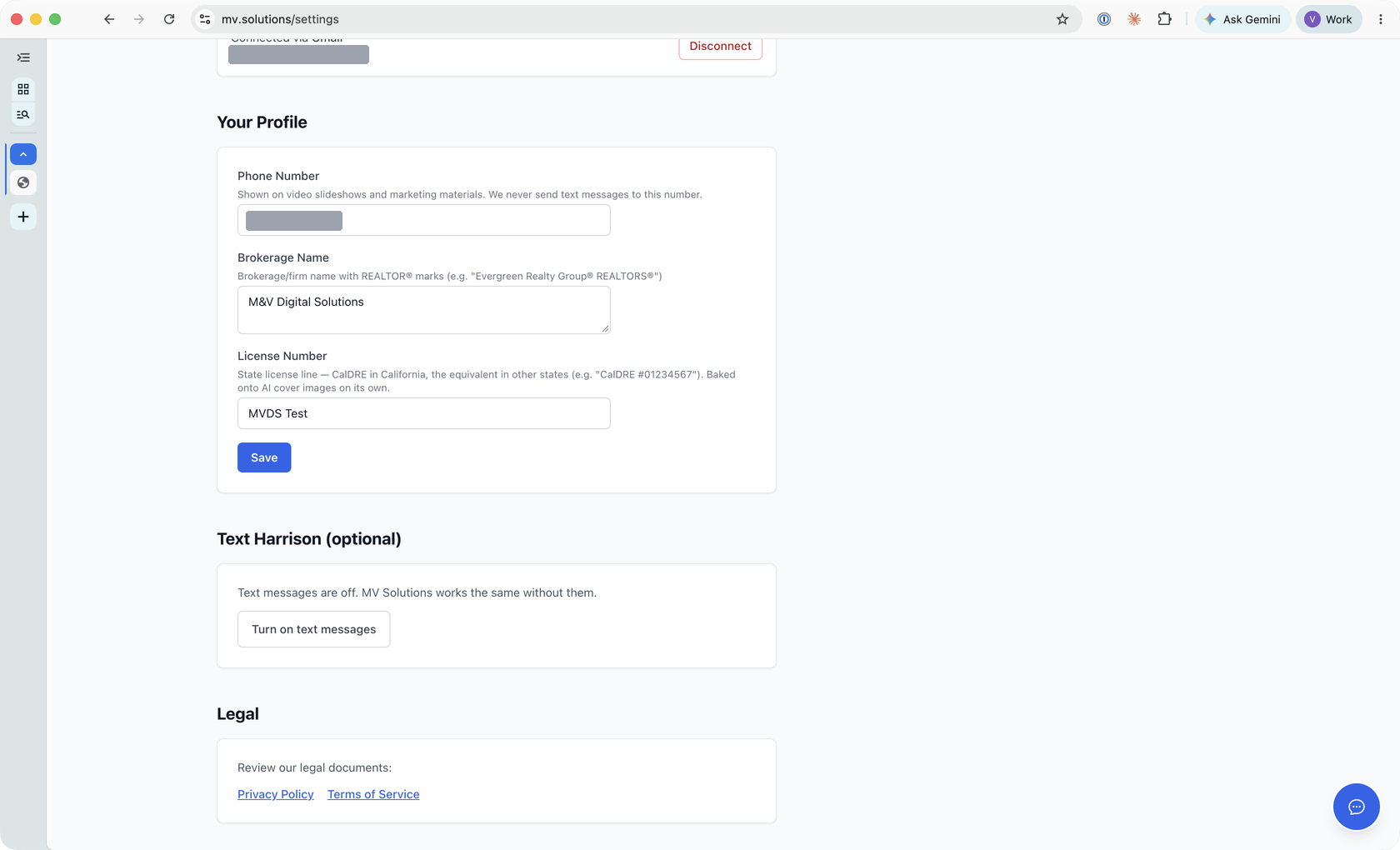
- Find the Text Harrison (optional) section. Text messages are off, and it says so. To turn them on, select Turn on text messages. This step is optional: leave it alone, or select No thanks, and nothing is saved and nothing about your account changes.
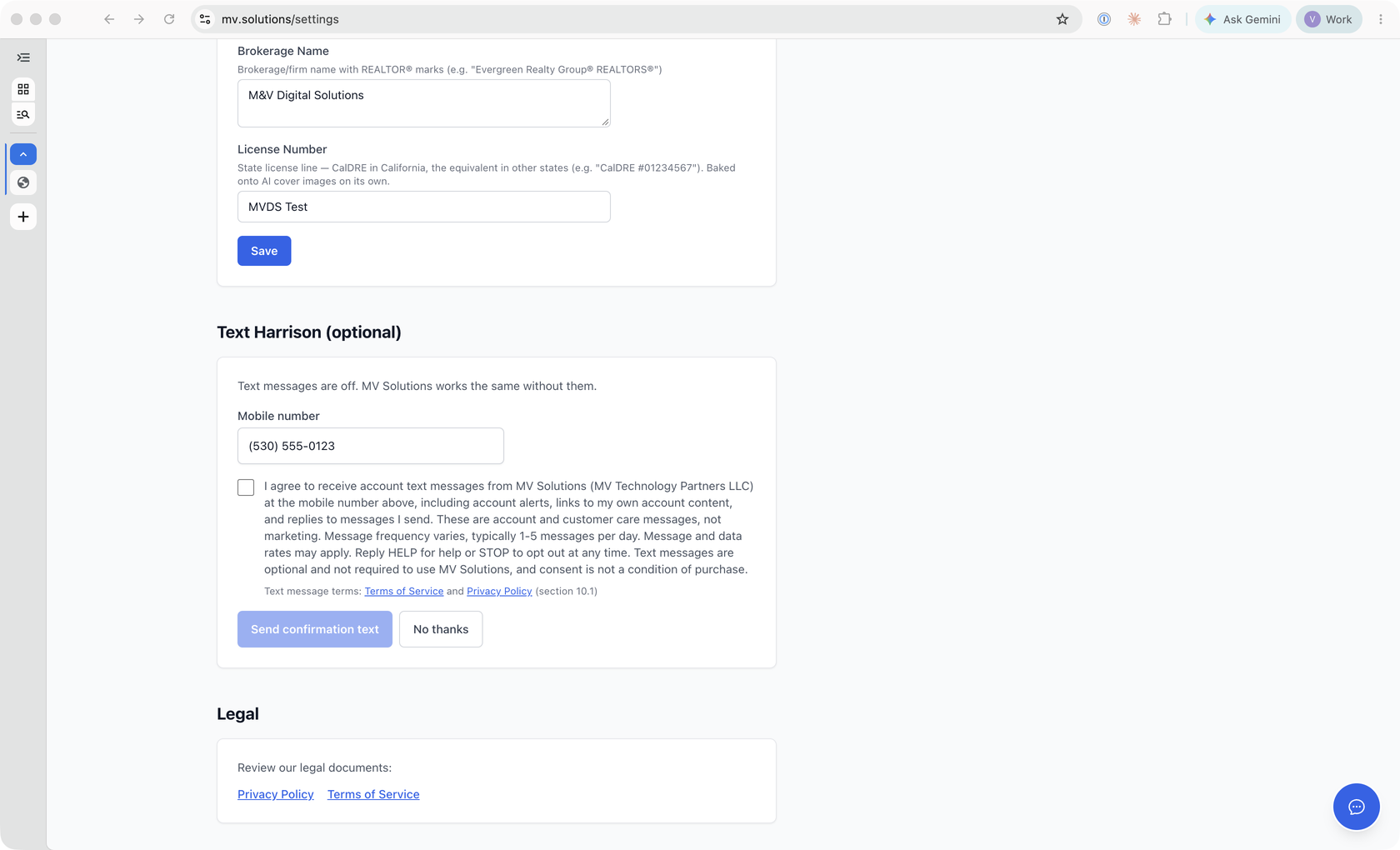
- Enter your mobile number.
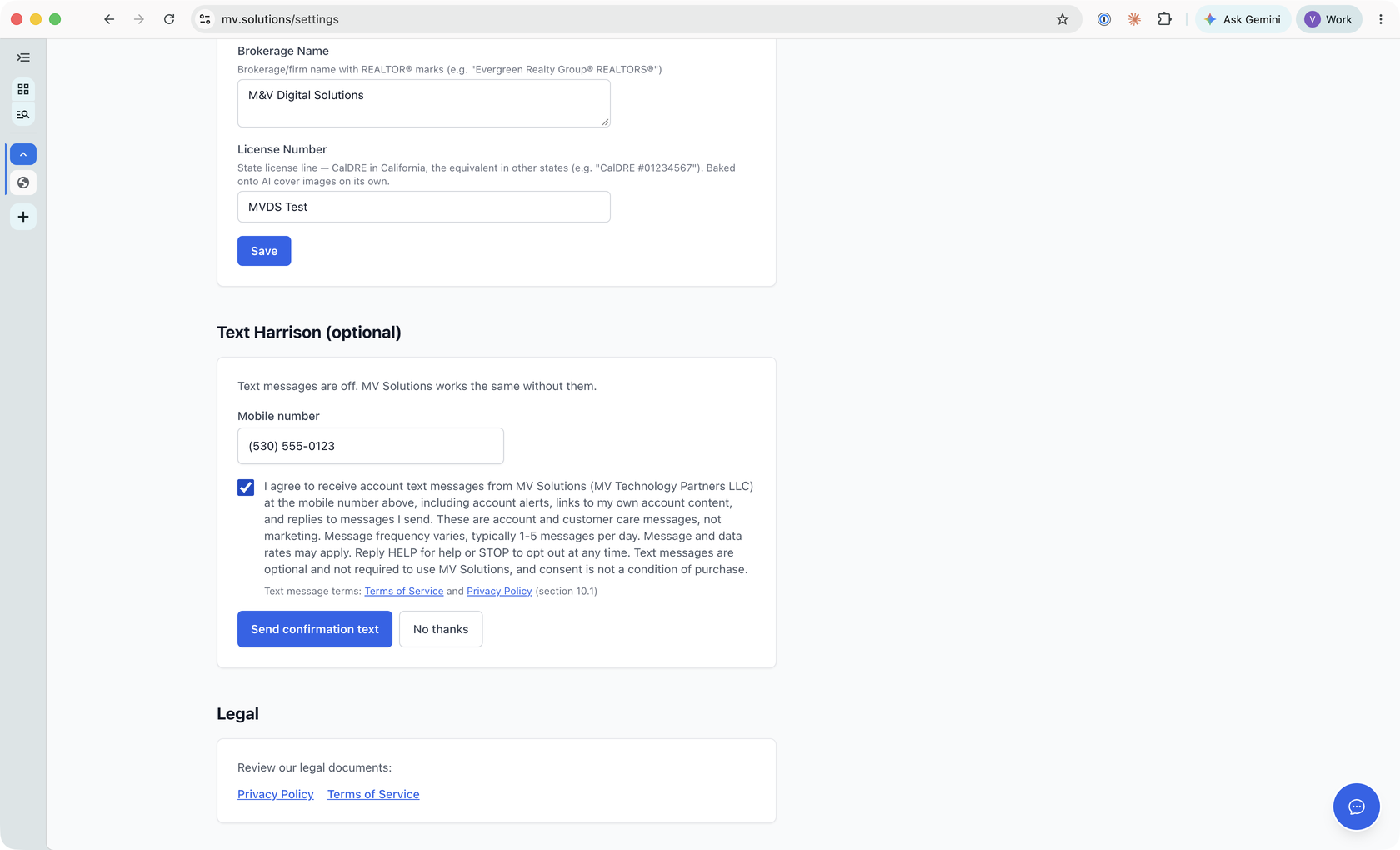
- Read the consent statement and check the box beside it. The box is a separate control, unchecked by default, it is not part of accepting any other terms, and Send confirmation text stays disabled until you check it.
- Select Send confirmation text. We send your number one message: the confirmation text shown below, with a link.
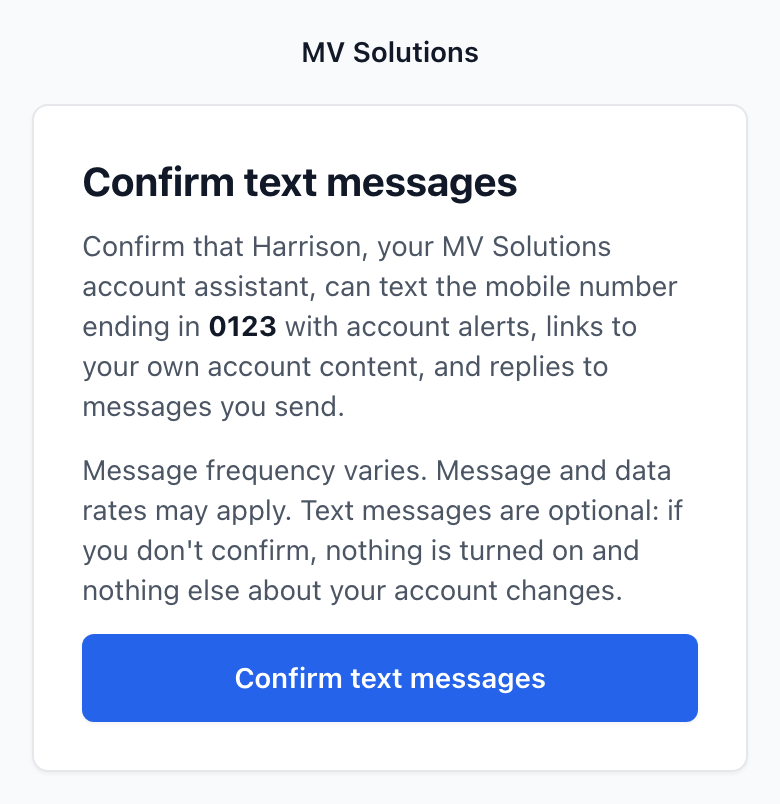
- Tap the link in that text and select Confirm text messages on the page it opens. Texts begin only after you confirm; if you never tap the link, nothing is turned on. Once you confirm, Harrison sends one welcome text explaining what you can ask it.
The same form, with the same consent statement and the same two steps, may also be offered once right after you sign in, under the heading Want to do this by text? It is just as optional there: select Not now and no number and no consent are saved (only that it was offered). The offer is shown only once, whatever the answer, and the option stays in Settings.
The sign-up form can start the same opt-in. When you create an account at mv.solutions, the form asks for your mobile number so your account has one on file, and shows the same consent statement beside a checkbox that is unchecked by default. The checkbox is optional: leave it unchecked and we send no text message, no consent is saved, and the account is created exactly the same way. If you check it, we send the same single confirmation text, and texts begin only after you tap its link and confirm, as in the steps above. Giving a number is not consent to receive texts, and consent is never a condition of creating an account or of any purchase.
Or start by texting START
When the mv.solutions home page offers it, you can start from your phone.
- On mv.solutions, Text Harrison opens your phone's messaging app addressed to (530) 261-8108 with START already typed. On a computer the page shows the number and a picture to scan with your phone's camera instead. Beside the button, the page shows this statement:
Shown beside the Text Harrison button Text START to (530) 261-8108 to sign up by text, and we'll reply with a link to sign in or create your account. These are account and customer care messages from Harrison at MV Solutions (MV Technology Partners LLC), not marketing. Message frequency varies, typically 1-5 messages per day. Message and data rates may apply. Reply HELP for help or STOP to opt out at any time. Texting is optional and not a condition of purchase.
- Send START. We reply with our opt-in confirmation and one more message with a link (both are shown below).
- Open the link. Sign in if you have an account, or create one. Either way the page shows the same consent statement and checkbox as Settings, unchecked by default, and Turn on texts (or the sign-up form's button) stays disabled until you check it.
- Texts begin only after that. If you never open the link or never check the box, we send nothing more. The link works once and expires after 72 hours.
Proof of opt-in
The first three screenshots were captured on September 24, 2026 from the live MV Solutions web application, at https://mv.solutions/settings (shown in each address bar), signed in to an MV Solutions account. They show the whole browser window. The account's email address and business phone number are covered in the first one; nothing else is edited. The mobile number entered in the second and third is an example, and nothing was sent. The Text Harrison button and the statement beside it are on the public home page at https://mv.solutions whenever it offers texting, and need no sign-in to see.
Messages you will receive
MV Solutions: Tap to confirm texts from Harrison, your account assistant: https://mv.solutions/sms/confirm/kQ7f2LxA9dRt6WcB1nZyPjH4sVmE8uK3oTgX5aQdC0w Msg freq varies. Msg&data rates may apply. Reply HELP for help, STOP to opt out.
MV Solutions: You're opted in to texts from Harrison, your account assistant. Msg freq varies. Msg&data rates may apply. Reply HELP for help, STOP to opt out.
Harrison from MV Solutions (reply STOP to opt out): Thanks for texting! Sign in or create your account to start texting with me: https://mv.solutions/start/pT4vQ9xK2mLs7RbN
MV Solutions: Harrison, your account assistant. Help: [email protected]. Reply STOP to unsubscribe. Msg&data rates may apply.
You're unsubscribed from MV Solutions and won't get any more messages. Reply START to turn them back on.
Message frequency and cost
Message frequency varies with your account activity, typically 1-5 messages per day. Message and data rates may apply. Carriers are not liable for delayed or undelivered messages.
How to opt out
Reply STOP to any message, or select Stop texting me under Settings, Text Harrison. You will receive one confirmation and no further messages. Reply START to opt back in, or HELP for help. Opting out does not affect your account.
Privacy
We do not share, sell or provide your mobile number or consent data to third parties or affiliates for marketing purposes. Read our Terms of Service and Privacy Policy, section 10.1 of each.
Help
Reply HELP to any message, or email [email protected].